1
Open Comic Lab from the Create page or the Comic Lab menu entry.
Guide
BetaComic Lab turns the characters, scenes and story you have already made into a comic book you can read, share and print. You do not start from a blank page.
Start from a series or from everything you have made.
Auto-build a first draft: it reads your story, looks at each picture, lays out the pages, puts pictures in panels and dialogue in balloons.
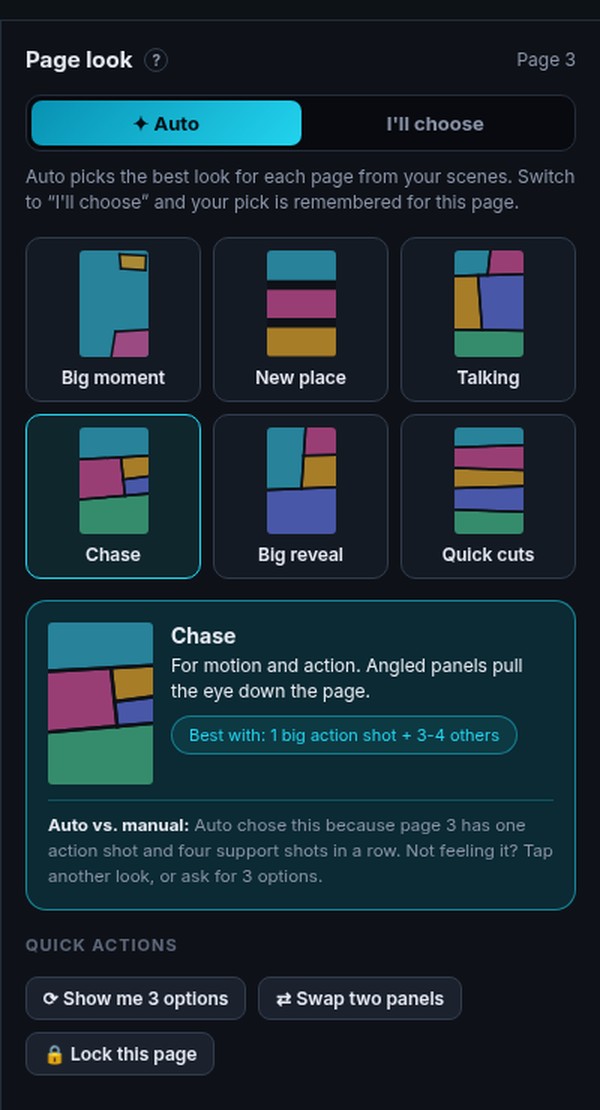
Pick a page look for each page (big moment, chase, talking, big reveal, quick cuts, and more) or let it choose.
Drag pictures into panels, move the focus of a picture, change colours.
Edit every balloon: says, thinks, shouts, whispers, caption, sound effect.
Make new pictures for empty panels (Auto-fill), in your own style.
Animate the panels that matter.
Preview as a reader, share a link, or export a print-ready PDF.
Save snapshots and restore any version. Archive comics you are not working on.
Open Comic Lab from the Create page or the Comic Lab menu entry.
Pick a project. Your series are listed first.
Click Open this project →. It reads your story and pictures. This takes up to about a minute and costs nothing.
You land in the editor with a full draft, in story order.
Fix what you do not like: drag a picture into a panel, change a page look, edit the dialogue.
Click Preview ▶ to read it like a reader.
When it flows, Share or Export PDF.
Open Page look on the right. Auto picks the best look for the page. Choose I'll choose to pick one yourself, or ask for three options. Switching looks is free.
Click ✦ Auto-fill. You see a plan first: how many panels use your pictures, how many need new ones, and the credit cost. Nothing is spent until you confirm. If a picture fails, that credit is returned. Lock any panel you want left alone.
Select a panel that has a picture and choose Animate this scene →. The credit cost is shown and you confirm. When the clip is ready it appears in your Scenes tray. Drag it onto the panel. (Beta. Placing the clip into the panel for you is coming soon.)
Double-click a balloon to edit the words, or use the Dialogue boxes in the panel details. Text always fits the balloon. Keep lines short. (Adding, moving and deleting balloons by hand is coming soon.)
Comic Lab saves as you go. History lists versions you can restore. Restoring never loses your current version. Archive puts a comic away without deleting it.
Comic Lab can lay your story out in different styles: superhero ink, manga, ligne claire, noir, kids' cartoon, painted sci-fi, webtoon strips.
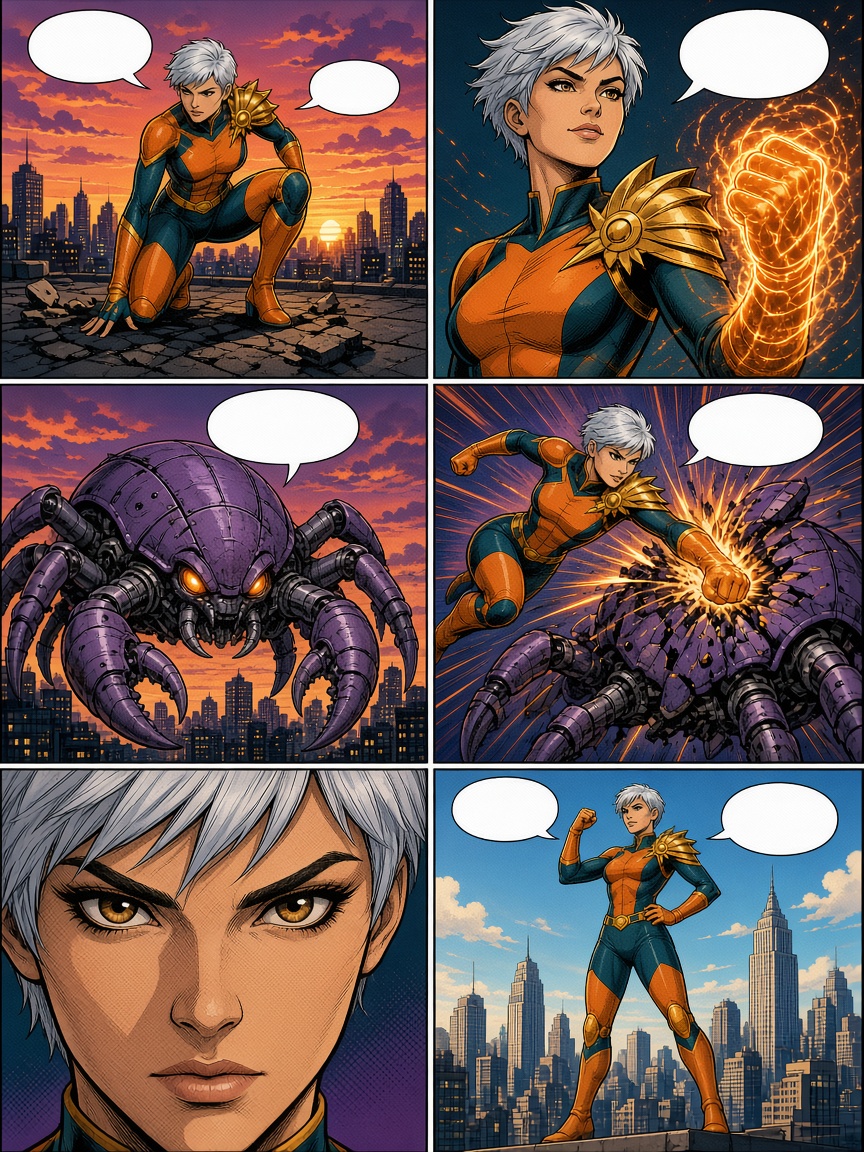
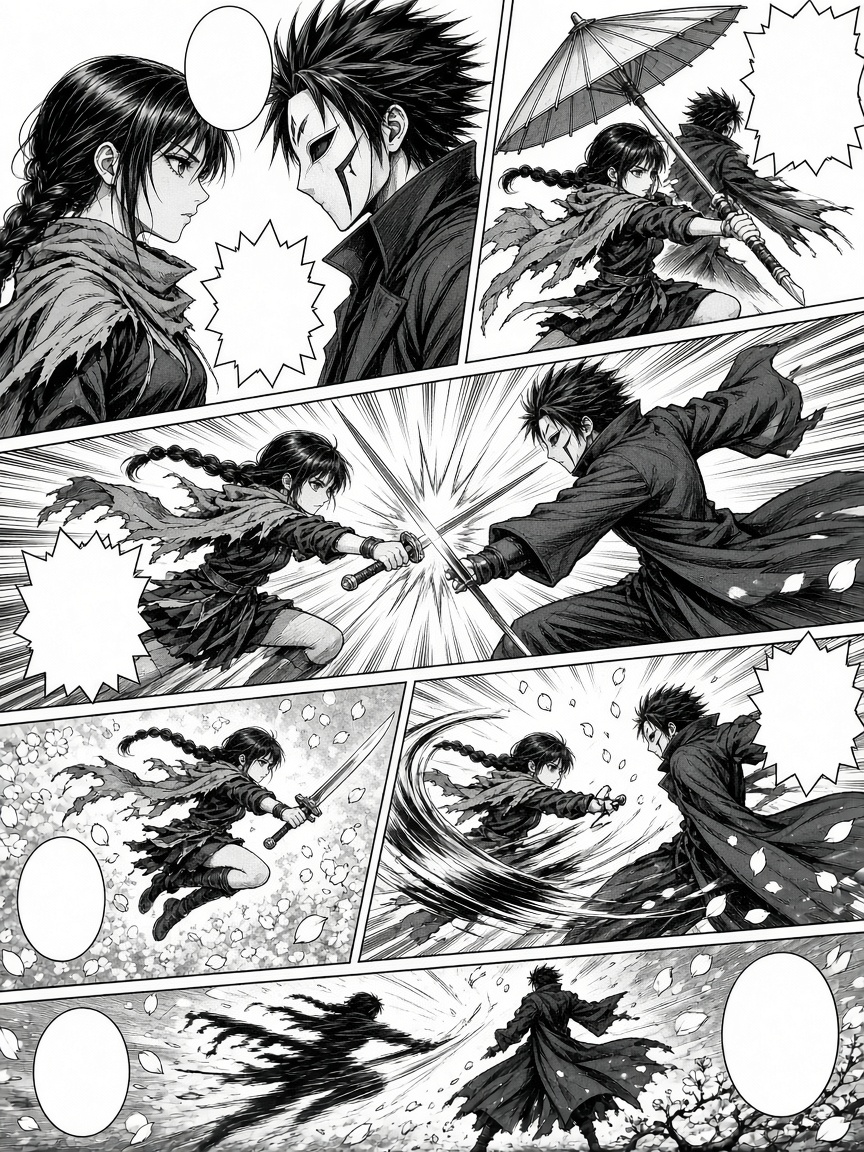
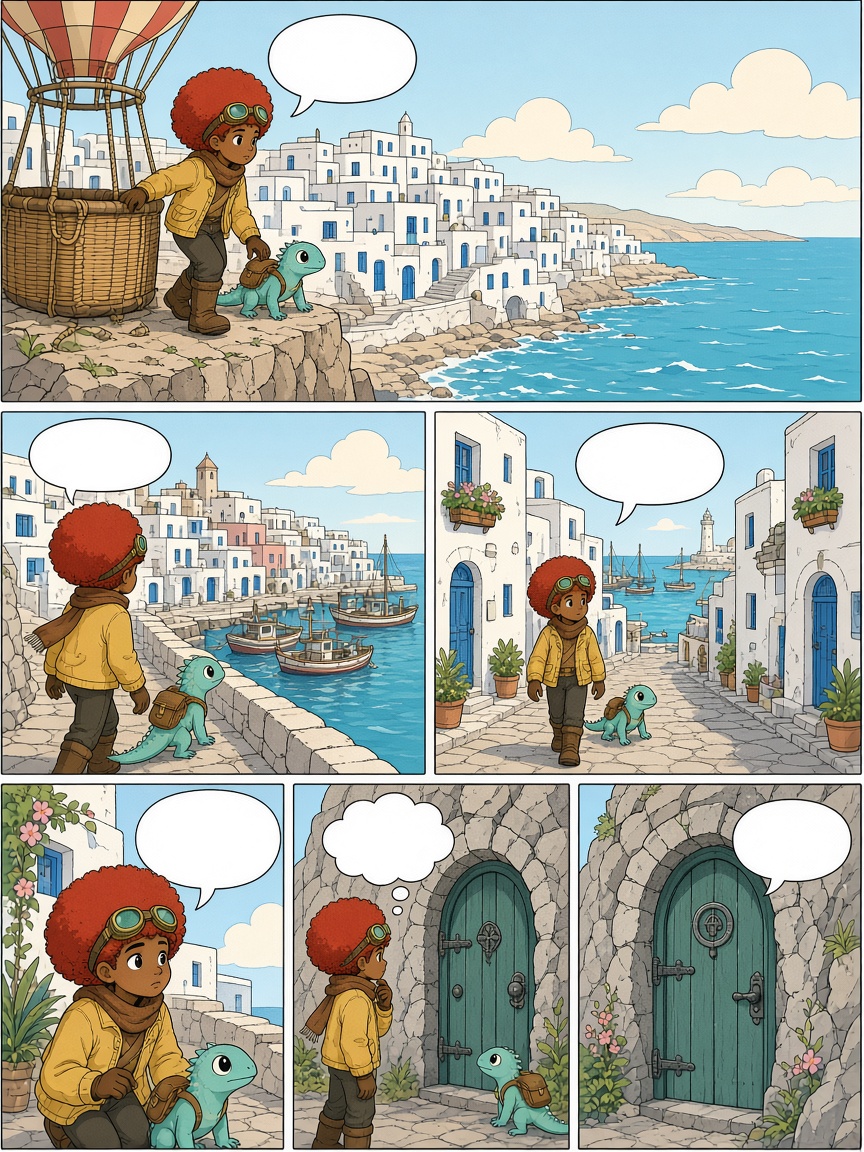
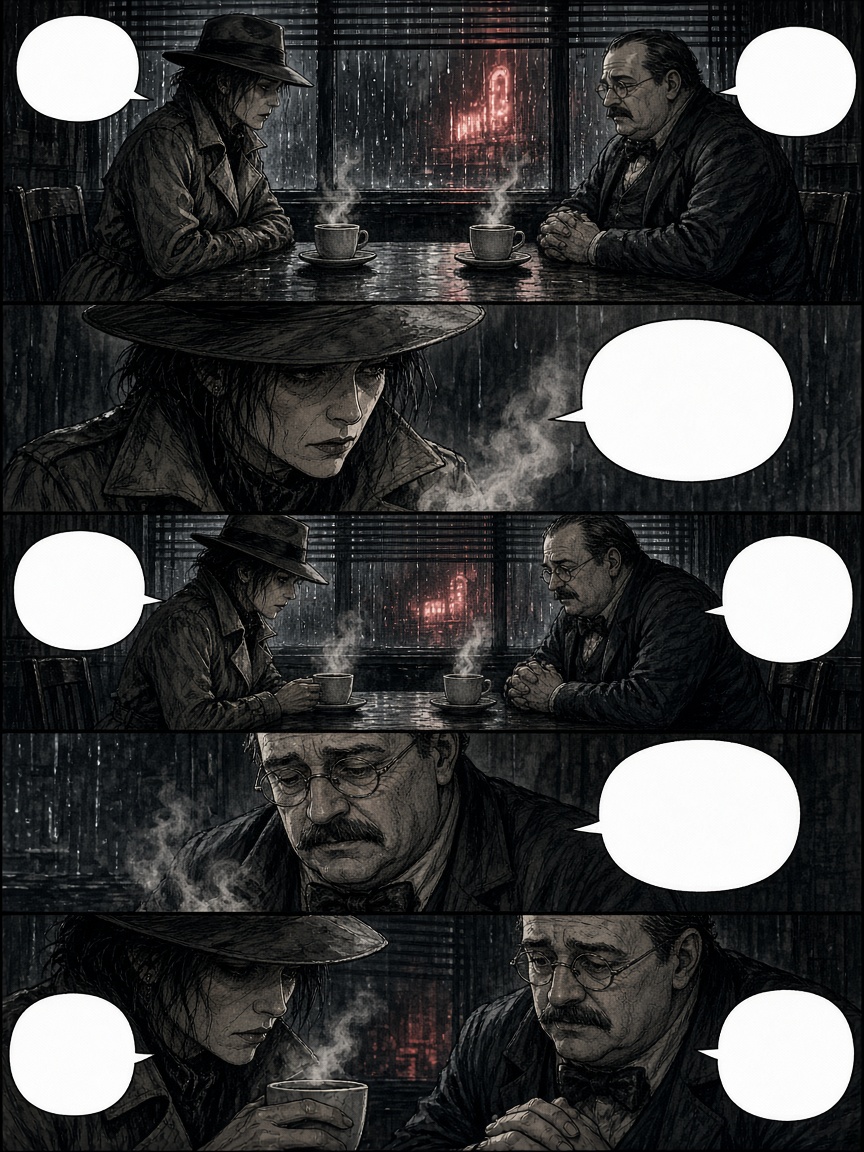
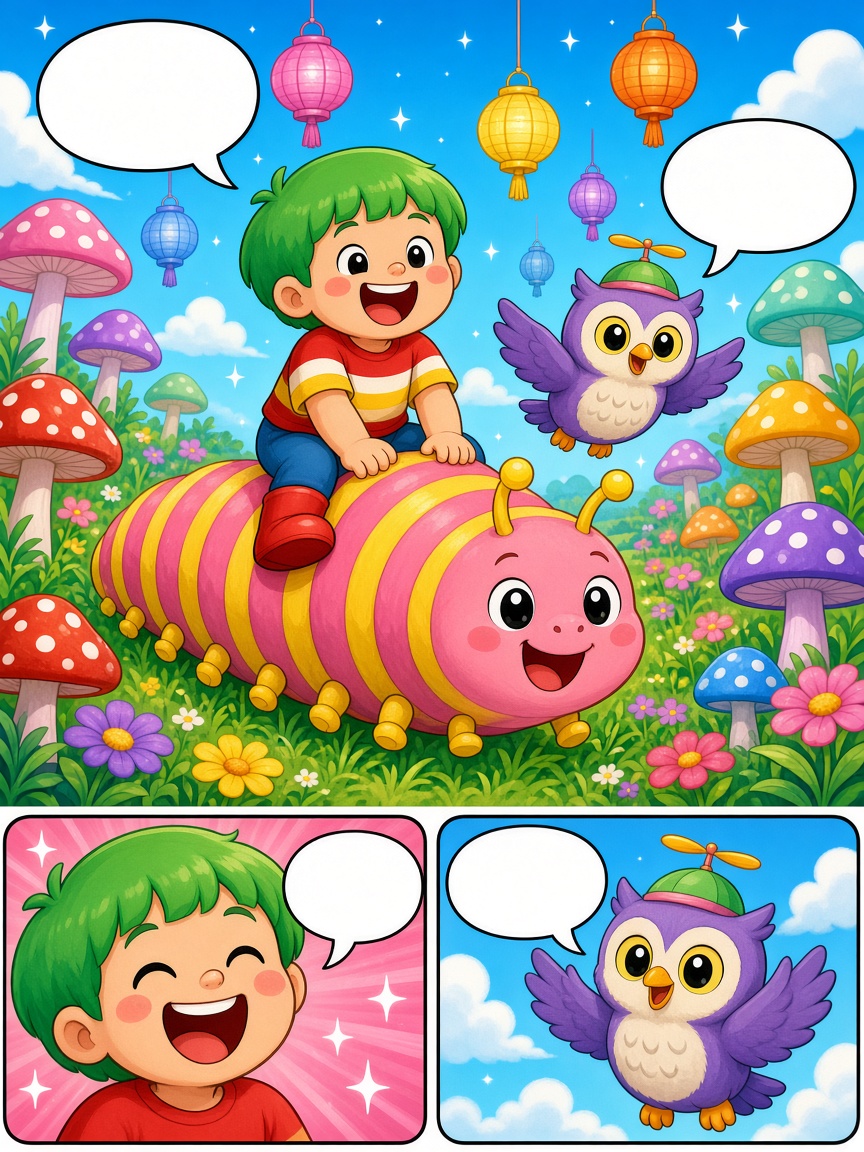
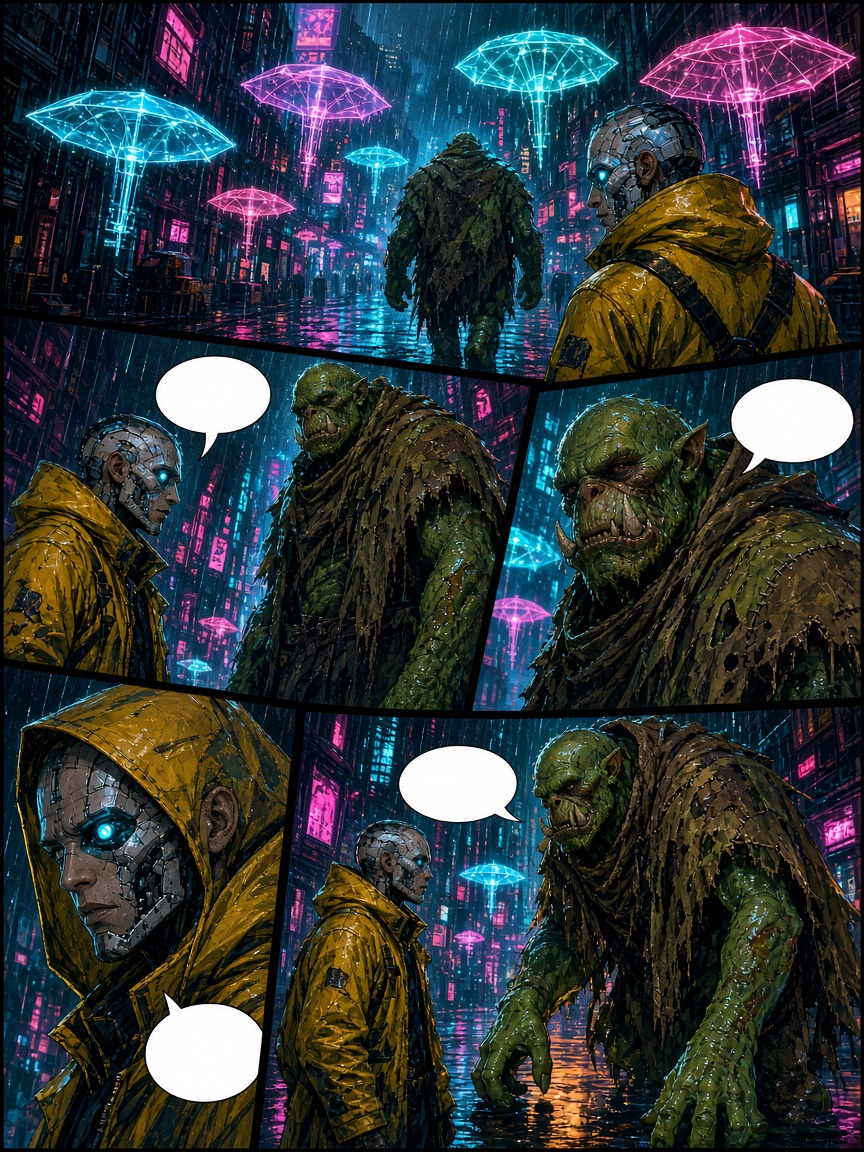
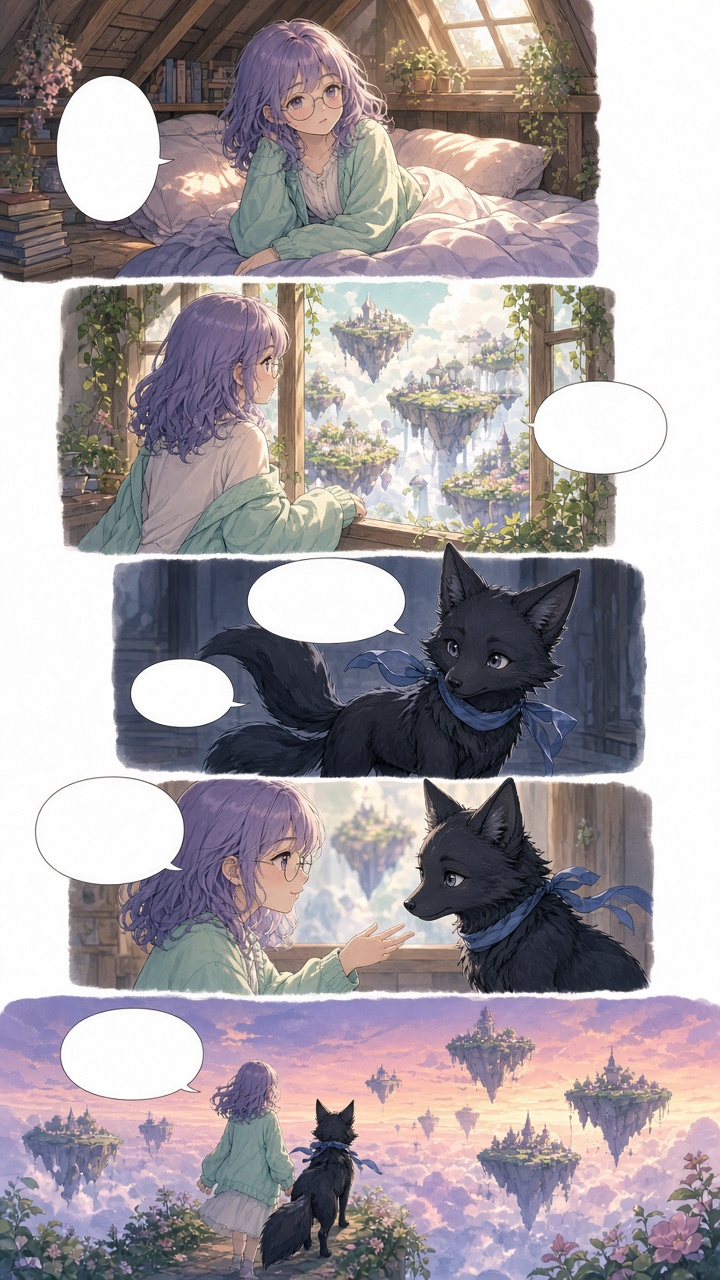
Star the pictures you want to keep. Auto-build uses them.
Click a panel, then drag. The drop goes to the selected panel.
Lock panels you like before you run Auto-fill.
Let Auto pick the page look, and only change the pages you care about.
Build the comic first, animate second.
Come back tomorrow: open it from Your comics and keep going.
| Action | Credits |
|---|---|
| Open a project, edit, drag, change layout, dialogue | Free |
| Preview, share, export PDF | Free. On the Free plan the PDF is watermarked. Sharing is view-only. |
| Auto-fill (new picture for a panel) | Credits, shown first |
| Animate / Redo a scene | Credits, shown first |
Speech balloons on the printed PDF: check your PDF before you print it.
Only the first part of a very long story is read in one build.
Other print sizes, a two-page spread view and page reordering are coming soon.