1
Open Create and click Make a character.
Guide
Make someone once. They keep the same face, hair and outfit in every scene. Every character also comes with a chroma-keyed cut-out: the same person with no background, ready to drag into any scene or place.
Make a character from a photo or from a description you write.
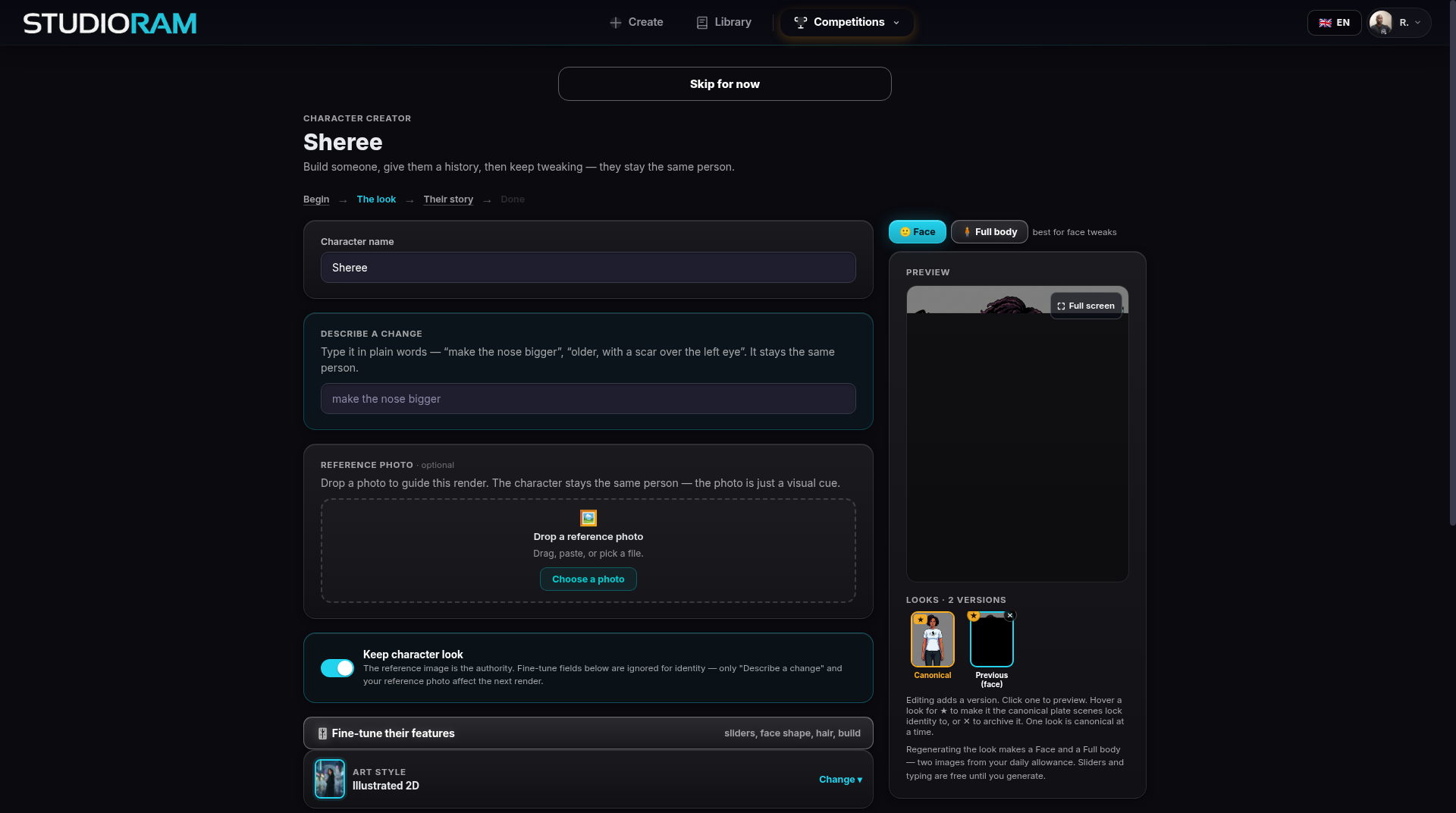
Change their look in plain words ("make the nose bigger", "older, with a scar"). They stay the same person.
Keep several versions and star your favourite as the main look.
See them as a face close-up and as a full body.
Add a backstory in Their story.
Choose their voice.
Get a chroma-keyed cut-out (no background) for every character.
Find everyone again in your Cast and in your Library.
Open Create and click Make a character.
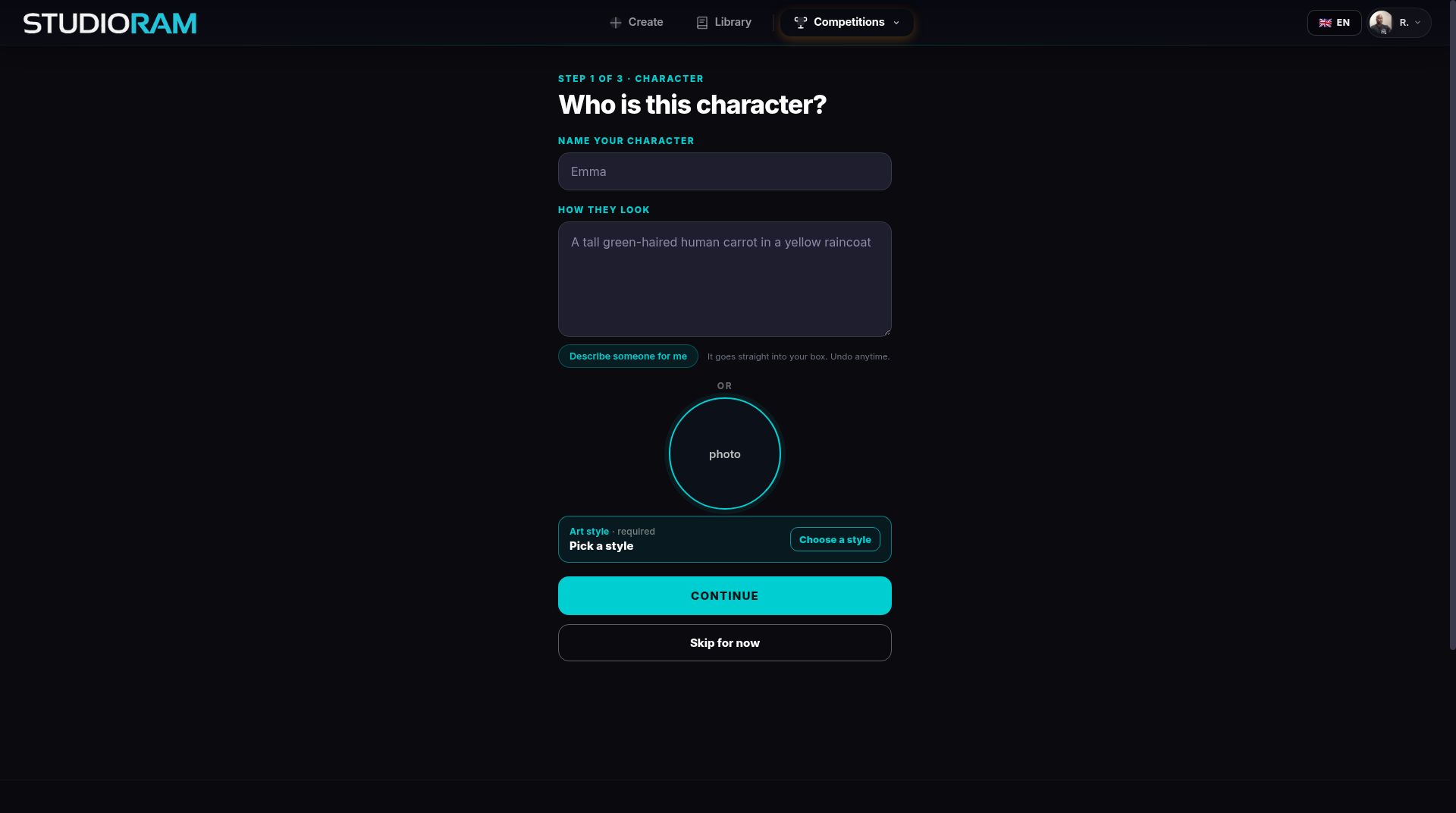
Step 1 of 3: Who is this character? Type a name. Describe how they look, or click Describe someone for me to get a start. Or add a photo instead.
Pick an art style (required). Click Continue.
Their look. Check the pictures. To change something, describe the change. Star the version you like best.
Their story. Add a short backstory. A want and a worry make them feel real. You can click Skip for now.
They are saved to your cast.
When your character is built, StudioRam also makes a cut-out: the same character with the background removed, saved as a transparent picture. We call this chroma-keyed. A cut-out has no box around it, so it can sit on top of any place.
It is made for you automatically. You do nothing.
You can see your characters in the Library under Characters.
Very fine details like loose hair can lose a little in the cut-out. If a cut-out cannot be made cleanly, your character keeps their normal picture instead.
The Stage in the Video Editor lets you drag a cut-out over a place and it stands at the right size. The Video Editor is in beta and is not on for every account yet.
Twelve ready-made poses per character (walk, idle, talk and more), each a transparent still.
Walk cycles, so a cut-out character can move.
Dragging cut-outs straight into a series from the Create page.
When you put several characters in a scene, each one keeps their own face. Make your characters first, then use them in Make a scene.
Start from a photo if you have a face in mind. Start from scratch if you have a feeling.
Make the character before the scene, so they stay the same.
Use your cast in every scene to keep the series consistent.
Free to make characters (there is a daily limit on new pictures).