1
Open Create and choose Animate a photo.
Guide
Animating is the special moment. You turn a picture or a scene into a short video. It uses credits, and you always see the cost before anything is spent.
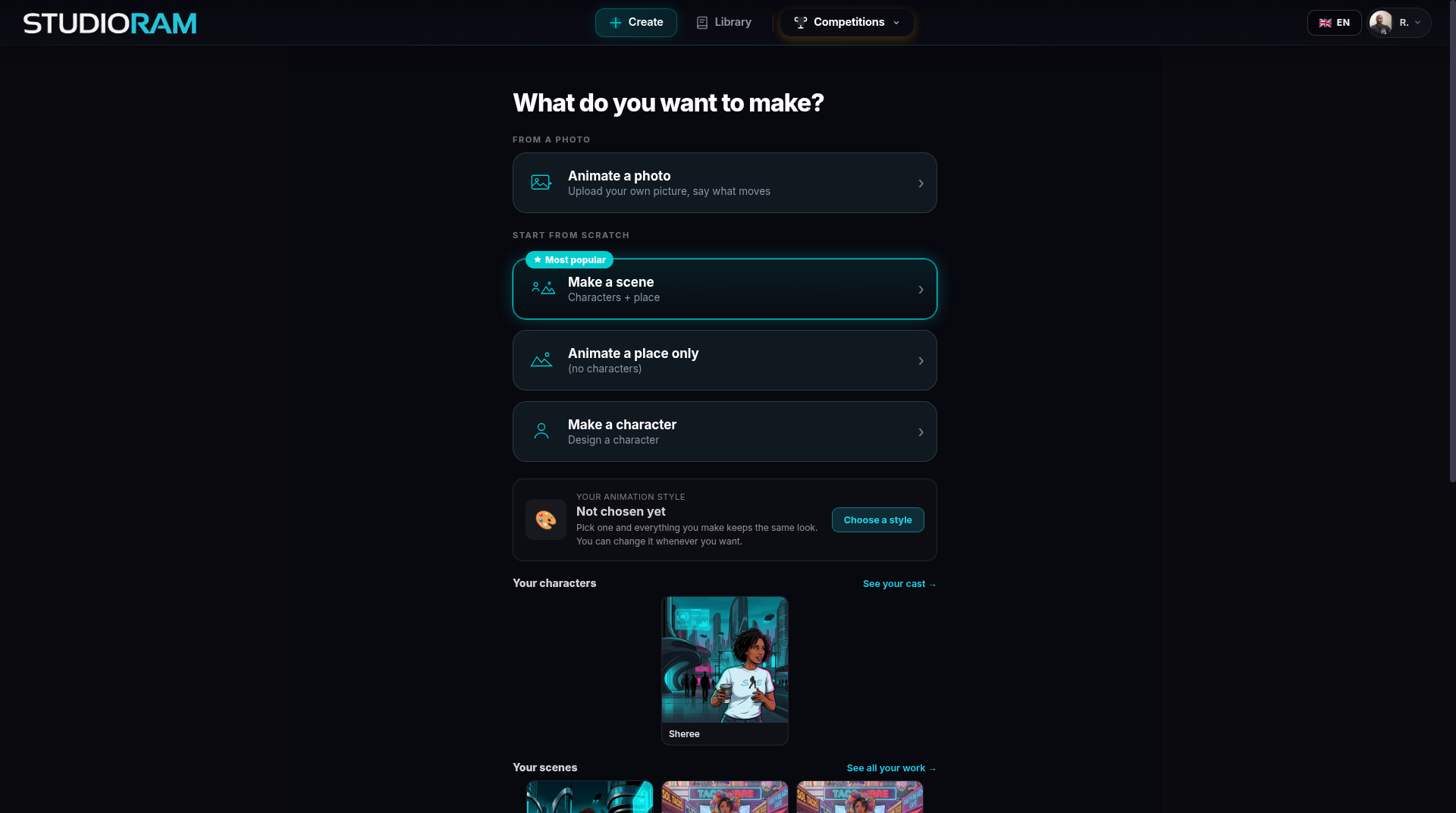
Animate a photo. Upload your own picture and say what moves.
Make a scene. Pick your characters and a place, then say what happens.
Animate a place only. A place with no characters.
Open Create and choose Animate a photo.
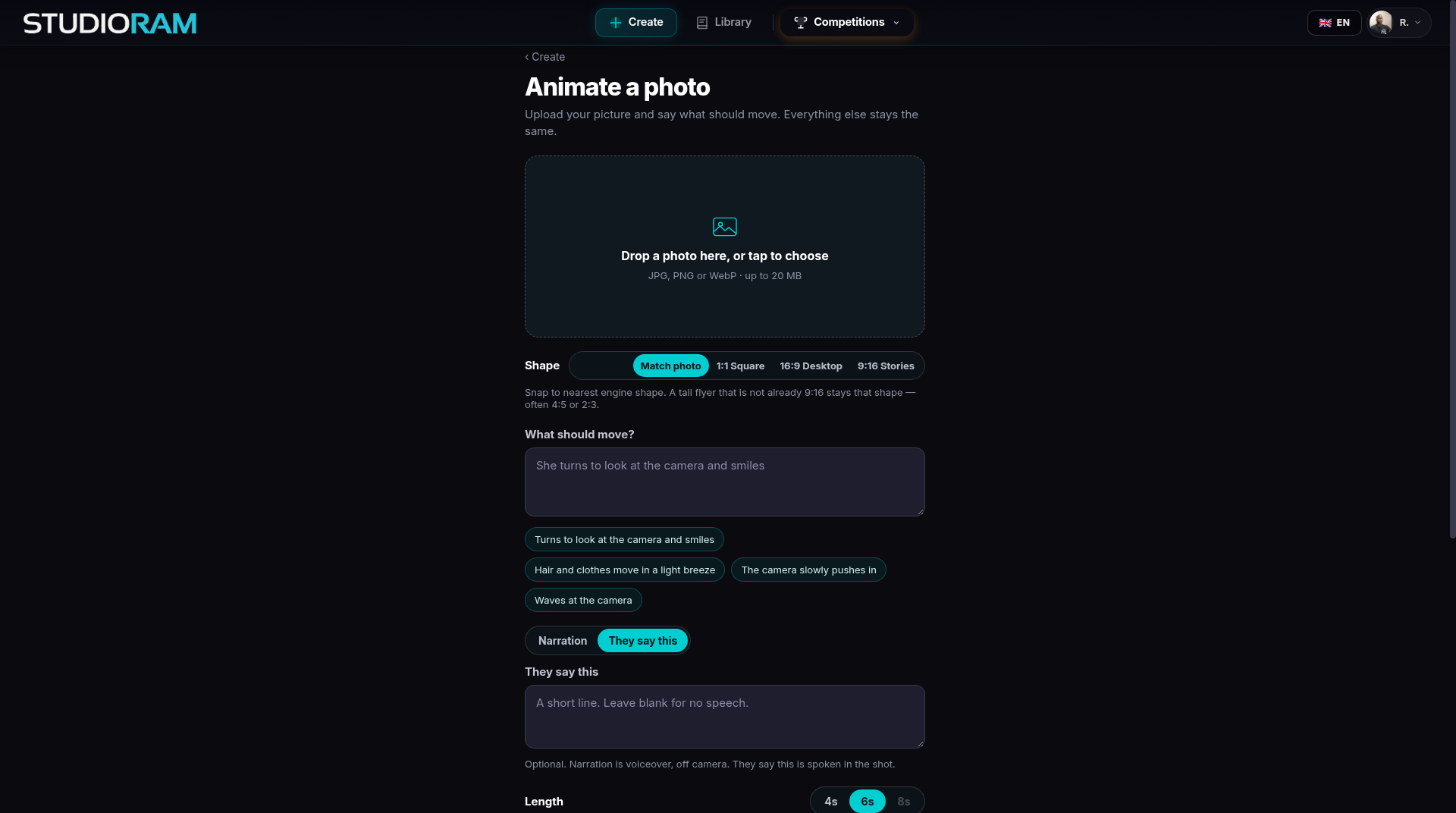
Upload a picture (up to 20 MB).
Choose the shape (aspect ratio) and the length: 4, 6 or 8 seconds.
Say what moves, then confirm the credit cost.
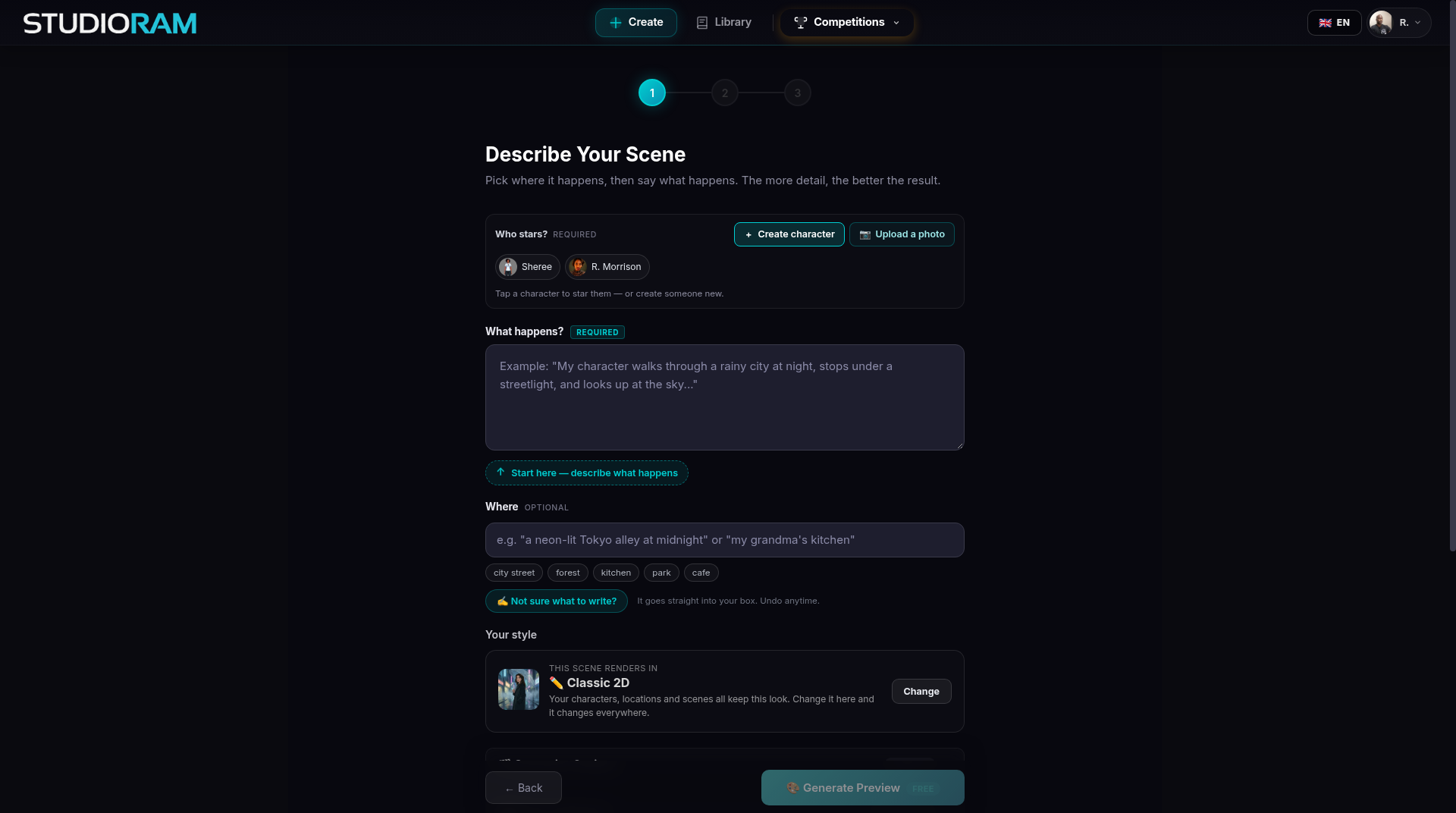
Open Create and choose Make a scene. It is a 3-step guide.
Pick your characters and a place. They look the same as when you made them.
Say what happens, in plain words. "She opens the door and sees a rainbow."
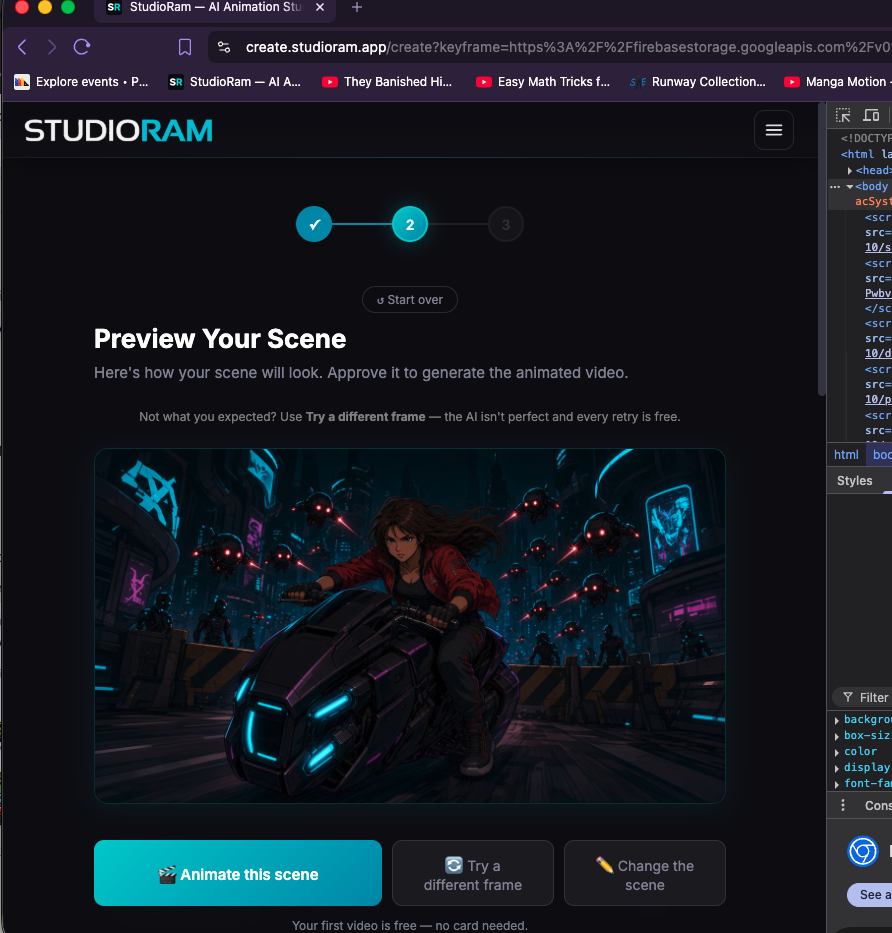
Check the preview of your scene. This is a still picture, so you can fix things before you spend credits.
Check the credit cost shown. Click to make your video.
Wait. A progress screen shows the steps.
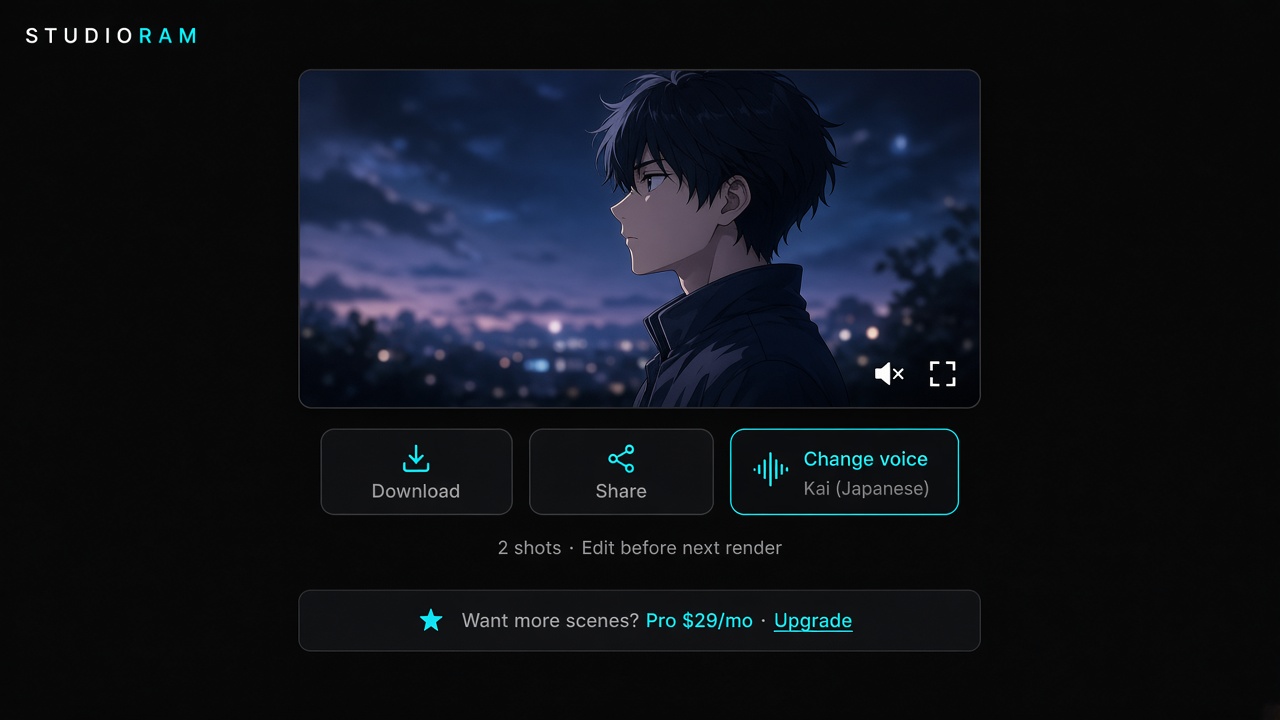
Watch it. Then change what you want to, or share it.
Make it longer. Add a few more seconds, for credits.
Change Voice. Pick a different voice without redoing the video.
Try again. If it is not right, redo it with a note about what to change.
Add to your story. Save it into your series or send it to the Video Editor.
Plan the episode in Series Maker (beta) and see it in Comic Lab first. Animate the scenes that matter most.
One action per scene works best. "She turns and smiles" beats a long paragraph.
Fix the preview picture before you spend. It is free to redo stills (daily limit).
Your first animation is free (it has a watermark and a short length). After that, each scene uses credits.
Shown before you confirm. A failed scene returns the credits.